ETC Ion Remote Access - 25/07/26
For a number of years, I have been closely involved with Backstage theatre on a volunteer basis. This includes the provision of lighting, sound, video, and special effects for local theatre productions. To control theatre lights, a lighting desk (sometimes termed a console) is used: this sends control data to the various lights around the venue using one of a variety of protocols. Modern lighting consoles are heavily computerised.
I frequently find myself working in one venue with an Ion XE console, manufactured by Electronic Theatre Controls, or ETC. The Ion series of desks is an established industry standard, and was itself an extension of earlier consoles such as the Expression. Ion consoles run the proprietary ETC software called EOS.
A common question when operating a lighting console is Can I control it remotely?
. There are
many reasons why a lighting operator may wish to do this. A classic example would be so that the
operator can wander around the stage to focus lights, whilst turning them on and off using a console
remote control. A more advanced example would be a production drop: in most venues, it is
standard practice to temporarily relocate control from the dedicated back-of-auditorium control booth
to the centre of the seating rake - the production drop
- during rehearsal periods. This enables
technicians to be closer to the stage. Therefore, the lighting control desk must either be transported
from the regular control booth to the production drop, or a remote control of some kind must be used
at the production drop to operate the desk in situ.
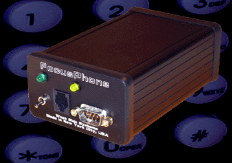
The introduction of the Phone Remote provided a remote control solution for focusing. This is a dedicated device which connects to a lighting desk on one side and to a cordless telephone on the other. Using the touch-tone keypad on the cordless handset, the desk's output levels may be adjusted. The previous generation of ETC Ion console actually featured a built-in RJ11 telephone socket, avoiding the need for a separate adaptor box. Nowadays, smartphone apps exist which can communicate with contemporary consoles over WiFi. As concerns a solution for use during rehearsals, however, such a basic remote interface would be entirely unsuitable.
Below: The original Phone Remote. This has now been discontinued. The D-Sub serial port connects to the lighting console; the RJ11 to the cordless phone. Using the phone handset's keypad, individual desk outputs (i.e. stage lights) may be controlled. Such a remote would be used to assist with the focusing of stage lights:
To achieve full remote console control, a more advanced system is required. One option, with ETC
consoles, is to use Multiconsole, whereby a secondary slave
console can communicate
over an Ethernet network with the primary master
console. Therefore, the production drop desk
could communicate with the in situ control-booth. A fairly obvious limitation of this approach
is that it requires two consoles. Most smaller theatres probably don't have this luxury.
Instead of a second full console, ETC provides a version of their EOS software which can run on a Windows computer. Many lighting technicians use this for editing show data offline, when outside the theatre. If an ETC Nomad license is purchased, however, this PC EOS software may be used in place of a full console: it can output control data to lights, and also link to another desk via Multiconsole. An ETC Nomad license is still required, though.
If you've read this far, it will seem as though the only remote control options for EOS consoles are
either rather limited or rather expensive. However, there is another way. Under the hood
, the ETC
Ion XE console is actually a desktop computer running Windows 10. The EOS software simply runs over
this OS. Most of the time, the Windows UI is entirely hidden by the EOS interface.
The underlying Windows 10 install on an Ion is admittedly rather trimmed-down, but many core Windows
features are still present. One such feature is Remote Desktop Protocol, or RDP. This is the
protocol used by the Windows Remote Desktop Connection
program, for accessing Windows PCs over the
network. Therefore, logic would suggest that it should be possible to enable RDP on the Ion's
underlying Windows OS; this would allow the Ion to be network-controlled using any standard Windows
PC, with no need for any additional licenses or hardware!
First, ensure that your console is connected to an Ethernet network and that EOS's IP settings are configured accordingly. To test network connectivity, the Ion's IP address may be pinged from another device on the same network.
To access the Ion's underlying Windows OS, exit to the Shell
, within EOS, and from there open
the Concert program. This program is ordinarily used to configure network-connected ETC
peripherals, such as MIDI control gateways. However, for our purposes, all we're interested in is
accessing the File > Save As dialogue box within the program. In this window, select the
address bar at the top, and type cmd
; this will open the Windows command prompt.
With the command prompt open, enter the following command to enable RDP access:
Reboot the console, and then try connecting to its IP address using the Remote Desktop
Connection program on a Windows computer elsewhere on the network. If all has gone according to
plan, you should be presented with a username/password dialogue box. Enter the username Eos
,
and leave the password empty. This will open up a remote session to the Ion exactly as though you're
sitting in front of it.
Having remote control of an Ion console via a standard protocol is very useful. However, it has a few caveats associated with it.
Most notably, Windows RDP does not allow simultaneous local and remote access. Therefore, if a remote connection is made to the Ion, any local user will be kicked off and simply shown a Windows-style lock screen. The local user may regain control at any time, though, simply by logging in from this lock screen; this will kick the remote user off.
Another caveat is the lack of password protection: any network-connected device may access the
Ion simply by using the Eos
username. Therefore, the Ion should be placed on a suitably
protected network, only accessible to trusted technicians. Under no circumstances should the
Ion's RDP connection be port-forwarded to the public internet. If long-distance remote access
of this kind is needed, a site-to-site VPN solution, such as OpenVPN, should instead
be employed.